Editing
The TilePlusBase class section is always handled with a customized GUI when viewing any TilePlus tile in a Selection Inspector. Various sections of this inspector are visible or hidden depending on the context.
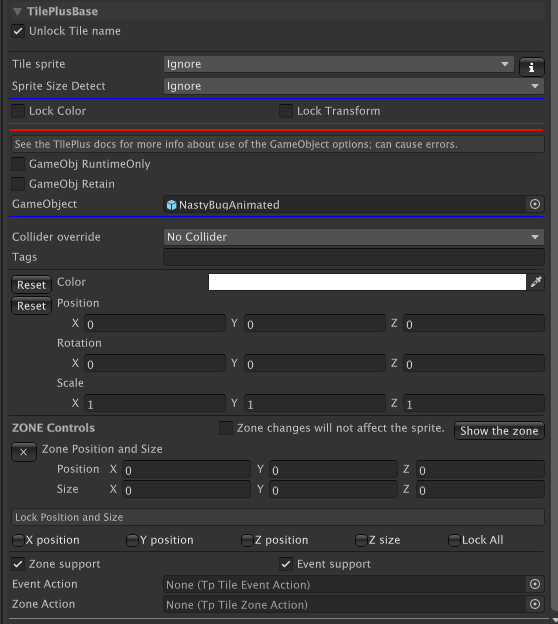
Let's go through the various parts of this inspector.
-
Unlock Tile Name: Normally one doesn't change the name of the tile. If you need to, uncheck the box and you can change the name.
-
Tile Sprite: Tile Sprite is used to control visibility of the Tile’s sprite. This is handy if you just want to use the GameObject of the Tile and don’t want the sprite to appear on the Tilemap, but you want to see it in the Palette or Painter.
- If this is set to ClearOnStart or ClearInSceneViewAndOnStart then the Tile’s sprite will be invisible when painted. You can still find it using Painter and change the setting directly.
- ClearOnStart is useful for tiles with no visual appearance since you can have a sprite for visibility in the Palette and in the Scene View but the sprite is disabled when the game runs.
-
The Lock Color and Lock Transform flags can be used to change the flags setting on the Tilemap and the tile instance’s flags value.
- If Lock Color is checked then the Color field is hidden.
- If Lock Transform is checked the the transform fields are hidden.
-
If you add a GameObject to the tile (the GameObject field), the GameObject Runtime-only and Retain flags become visible. A GameObject can also be added by viewing the project folder asset in a Unity inspector.
- Effect on the Inspect Prefab button: The button appears only if the Tile has a GameObject. What is inspected when you click this button depends on a Tile flags setting:
- Instantiate-Runtime-Only is ON: Prefab asset in the Project folder.
- Instantiate-Runtime-Only is OFF: GameObject instance of the Prefab in the Scene.
- This can occasionally be confusing: if you did not have Instantiate-Runtime-Only ON when the Tile is painted then the Tile creates the scene GameObject immediately. If you later turn this flag OFF, the scene GameObject will not be removed! In this edge case the GameObject in the Scene is what will be inspected.
- Effect on the Inspect Prefab button: The button appears only if the Tile has a GameObject. What is inspected when you click this button depends on a Tile flags setting:
-
The instanced GameObject in the scene isn’t editable. Hence, the only way to remove the GameObject from the scene is to delete the Tile. This is a Unity effect, not a TilePlus effect.
-
Collider override can be set to No Override, which means that the setting from the tile asset in the project folder is used. The other settings can be used to set the collider type on a per-tile basis. This action occurs during the execution of the tile’s GetTileData method.
-
Tags is a field where you can place one or more comma-delimited tags. TpLib methods can be used to look for tagged tiles.
- The tag
-----(five hyphens) is reserved.
- The tag
-
Color is a field that’s used to change the sprite color on the Tilemap and tile instance’s color value.
- Use the Reset button to reset the Color.
-
The Position, Rotation, and Scale fields can be used to affect the transform of the sprite on the Tilemap and the tile instance’s transform value.
- The Reset button resets the tile sprite transform.
-
Zone Controls: A Zone is a BoundsInt that describes a region.
- The small
Xbutton resets the Zone to one tilemap unit. - These controls appear only when
Zone Supportis checked. - Position is an offset from the Tile's position. Z is ignored.
- Size is the size of the Zone.
- If
Zone changes...is checked, then the tile's sprite is affected by changes to the Position, Rotation, and Scale fields. - The
Lockcheckboxes let you lock the entire zone to ensure it's not editable or just some of the components. - The
Show The Zonebutton displays a marquee around the zone in the Scene view. This is very handy when editing!
- The small
-
Zone and Event support are advanced features that you can read about here. Adding the Scriptable Object references for Event and Zone Actions is done in this inspector or by inspecting the asset in the project folder.
Certain tiles use a built-in capability to inhibit the visibility of the Name, Collider, Tags, Color, and/or Transform sections of the foldout.
For example, tiles such as TpAnimZoneLoader and TpAnimZoneSpawner modify the sprite transform as you adjust the zone size. These tiles hide the transform fields since the transform shouldn’t be modified by humans.
To be clear, when acting on TilePlus tiles, the actions of modifying flags, transform, or color in the Selection Inspector or Tile+Painter changes the corresponding value in the tile instance and on the parent Tilemap of the tile. When you save the scene, the changes in the tile are preserved. The original tile asset in the project folder is not affected. When acting on Unity tiles, only the Tilemap is affected.
In Tile+Painter, it’s easy to pick tiles from the scene and perform Color or transform modifications. Again, the only thing affected is the Tilemap. The asset in the project folder is not affected.
Tile+Painter also has a bulk modification feature: you can select an area of a Tilemap and apply changes to Color, transform, and tile Flags for all tiles in the selection.
When the Editor is in Play mode the display will change somewhat, as most of the information becomes read-only, and some additional data appears showing the state of the animation flags (introduced in 2022.2).
When looking at a TilePlus Tile asset in the Editor, you can change the Description and Info fields. These appear in the Basic Info section as shown above, and in the Brush Inspector. You may find these fields useful: one use would be prompts to remind you what the tile does before you paint it.
If you change the size of the sprite and there’s another tile in the same area it might be obscured by the transformed sprite (or vice versa). If that’s a problem, you can adjust the transparency in the Color field (TilePlusBase section of the Selection Inspector) or change the Tilemap Renderer’s Sort Order setting.
Plugins/TilePlus/Runtime/Textures/TriggerZoneSprite can be used for the sprite for this tile, but you can use any sprite. Note that the sprite won’t appear if you change the TileSpriteClear to Clear In Scene View. If you don’t want the trigger zone to appear in Play mode, set TileClearMode to Clear On Start.
Note that the Tilemap Renderer will sometimes cull enlarged sprites. There’s a FAQ in the User Guide regarding this.